Getting Started!
Welcome to AdamRMS!
This short guide will help you set up an account on the platform and join a business.
Signing Up
AdamRMS supports log in with a Google account or by using an email address. Logging in with google is the recommended signup method, as it will allow you to join existing businesses more easily.
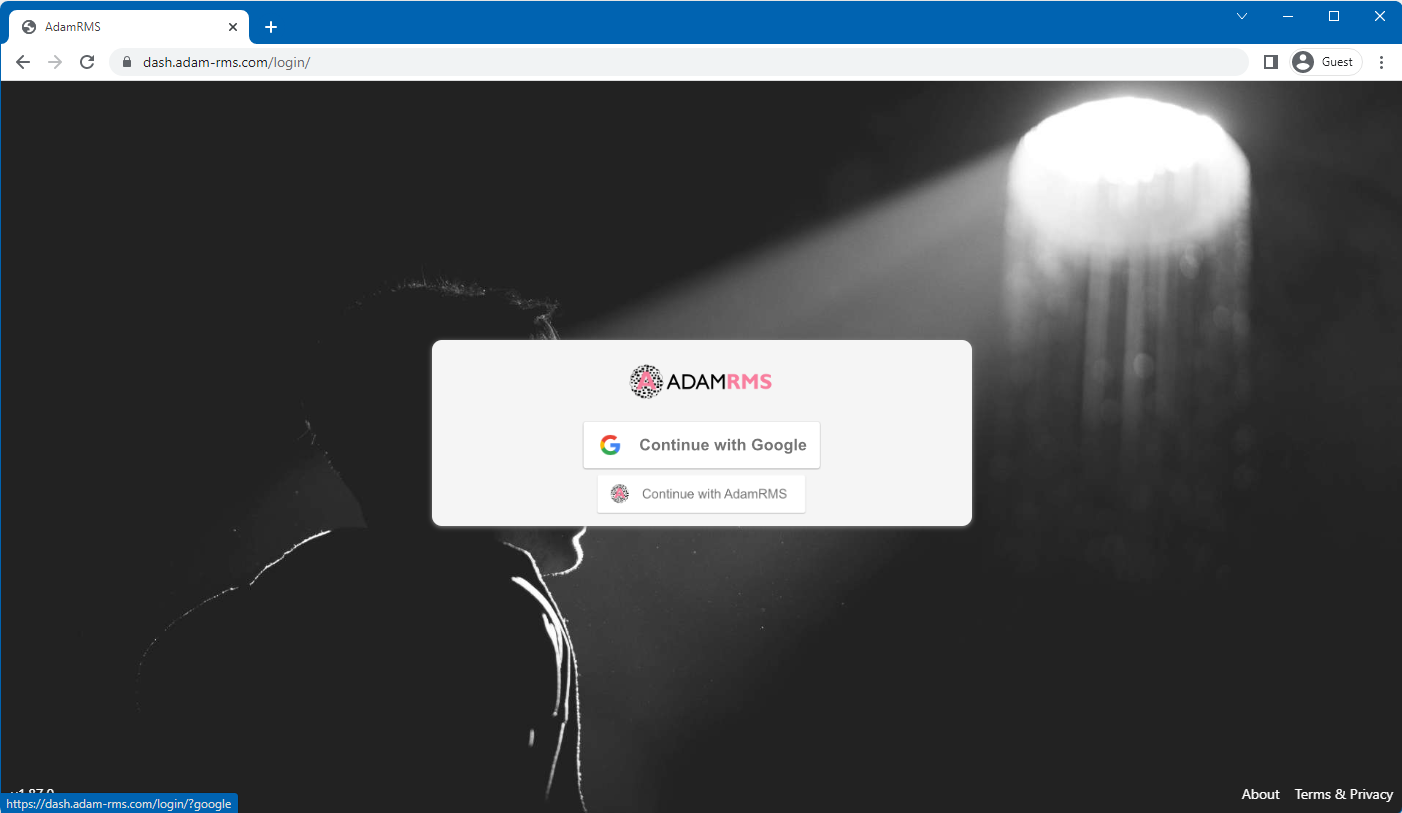 AdamRMS Login Page
Signing up with AdamRMS
You will need to provide the following information when creating an account:
- Your Name
- A strong password
- An email address
- A username
You also need to accept the terms of use, that can be found here: https://adam-rms.com/legal/
Finally, you’ll need to confirm your email address by clicking the link sent to your email address. Don’t forget to check your spam folder if you’ve not received it. If you have any issues creating an account, contact your AdamRMS administrator.
Joining a business
AdamRMS has separate areas for separate businesses, and is designed to be used by multiple businesses all with one account. To get started, you need to join a business
Some businesses may allow you to join their business by clicking on the join button for that business. This is based on your email address.
Alternatively, if you’ve been given a signup code, pop the code from your AdamRMS administrator into the Business Signup Code box and you’ll be added to that business.
You can join other businesses using the business switcher on the dashboard.
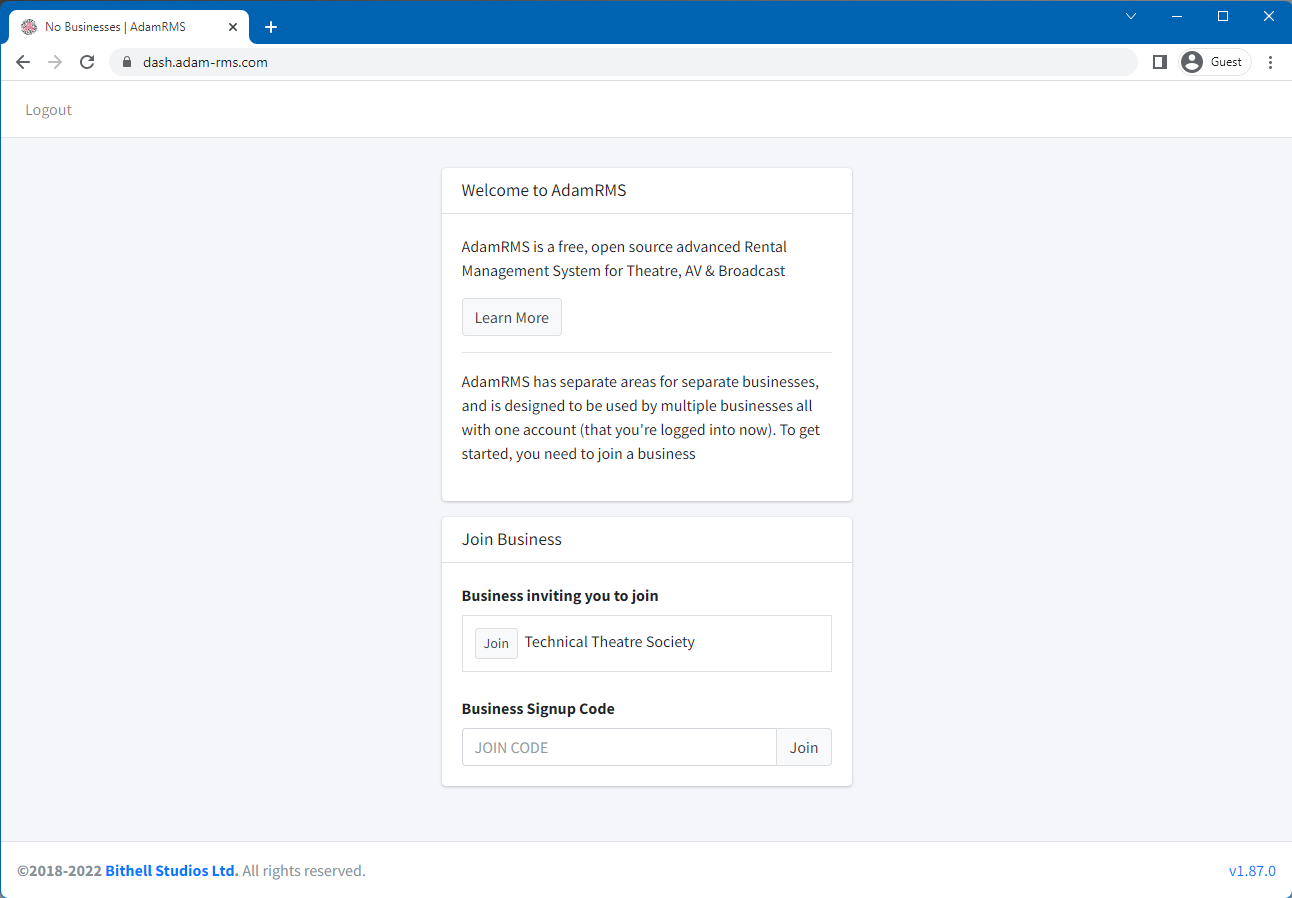 Joining Business
Your Account
One of the first things you should do once set up is check through your account. You can update:
- Your personal details - including social media
- Your notification settings
- Your Profile Picture
- Your password
- Setup sign in with Google
You can also add your AdamRMS calendar to a variety of services through the export calendar tab.
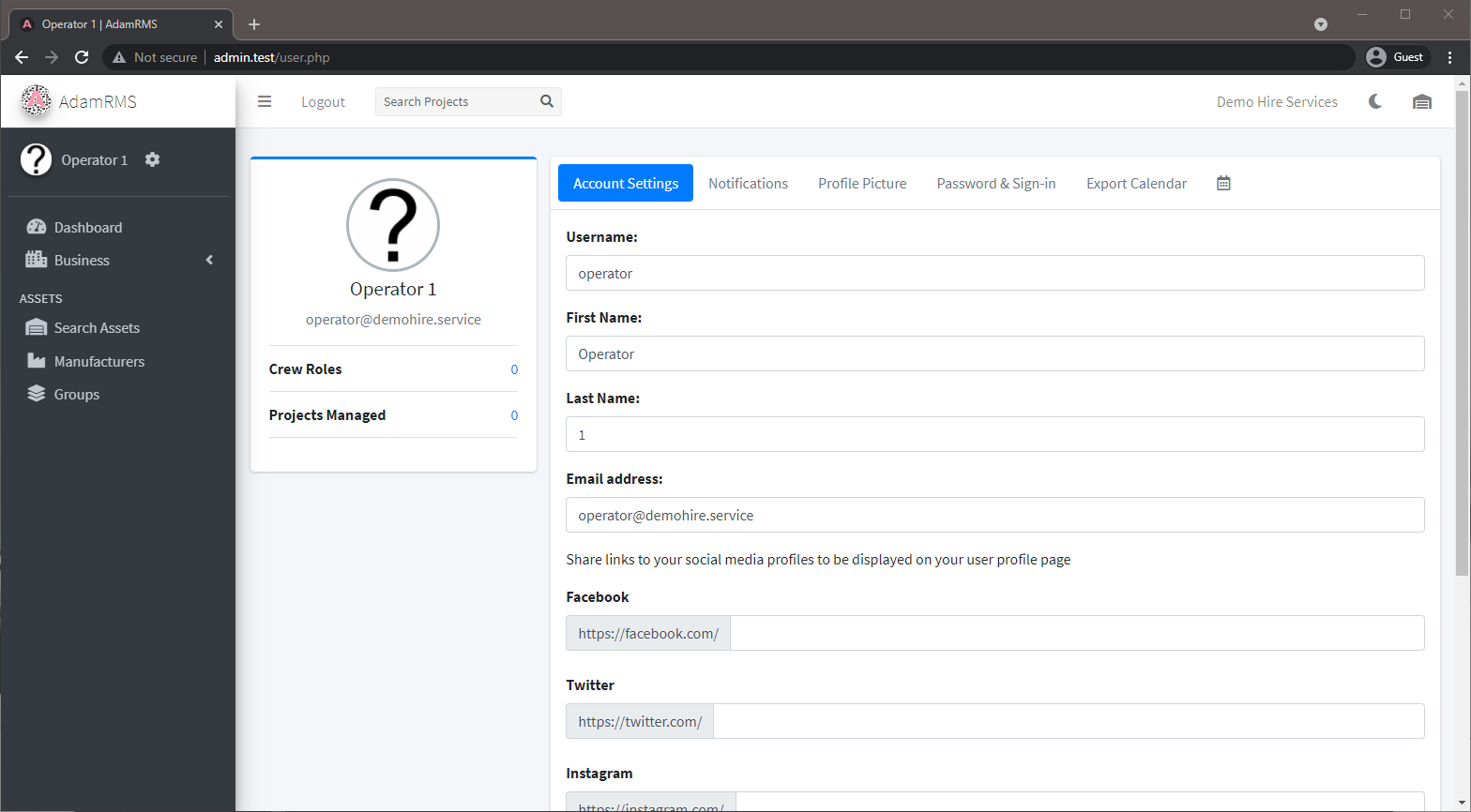 Account Settings
What's Next?
One of the first things to be aware of is what different Icons mean in AdamRMS. Many icons are explained throughout the user guide. For a full overview of navigation, see Dashboard & Navigation.
 The top bar of the rms contains the following icons:
- Show/Hide side menu
- Logout
- Find a Project
- Current Business name
- Click here to change or join a new business
- Light/Dark mode
- Asset Search
Here are some recommended next steps:
- Explore your dashboard -- see Dashboard & Navigation for a full guide
- Manage your account -- update your details, notifications, and calendar export on Your Account page
- Browse your assets -- learn about Assets and how to find them
- Understand projects -- see how Projects bring assets, crew, and finance together
- Check the glossary -- unfamiliar with a term? See the Glossary
AdamRMS uses a granular permission management system, so some features in this documentation may be disabled by your administrator. See the Permissions Reference for a complete list. Screenshots in this guide will contain only the features the documentation is discussing, so the dashboard may look different in each section.